Managing team access and permissions within your estate is seamless and secure with Homz. As a Community Manager, you can easily add new users to your management team and assign specific roles based on the responsibilities you want them to perform. This ensures that each team member has the appropriate level of access needed to carry out their tasks efficiently.
Follow the steps below to add new users and configure their roles within your Community Management dashboard.
Step 1:
If you have not already done so, and create an account, or log in to your existing account. Once logged in, you will be taken to your dashboard. (If you need help creating an account, refer to the “How to Create an Account as a Community Manager” guide.)
Step 2:
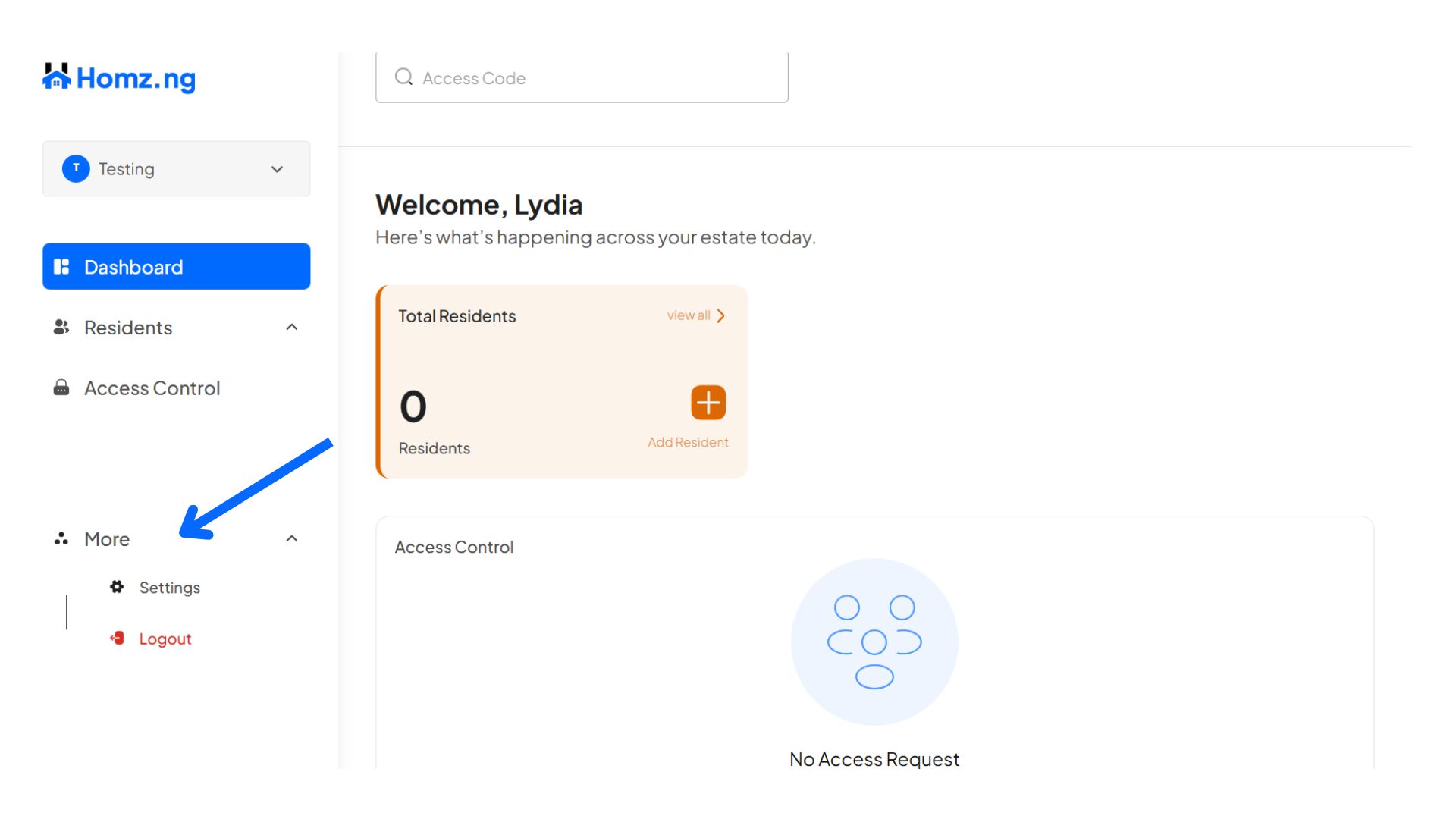
Click on the “More” button on the left-hand panel of the dashboard and click on the “Settings” button
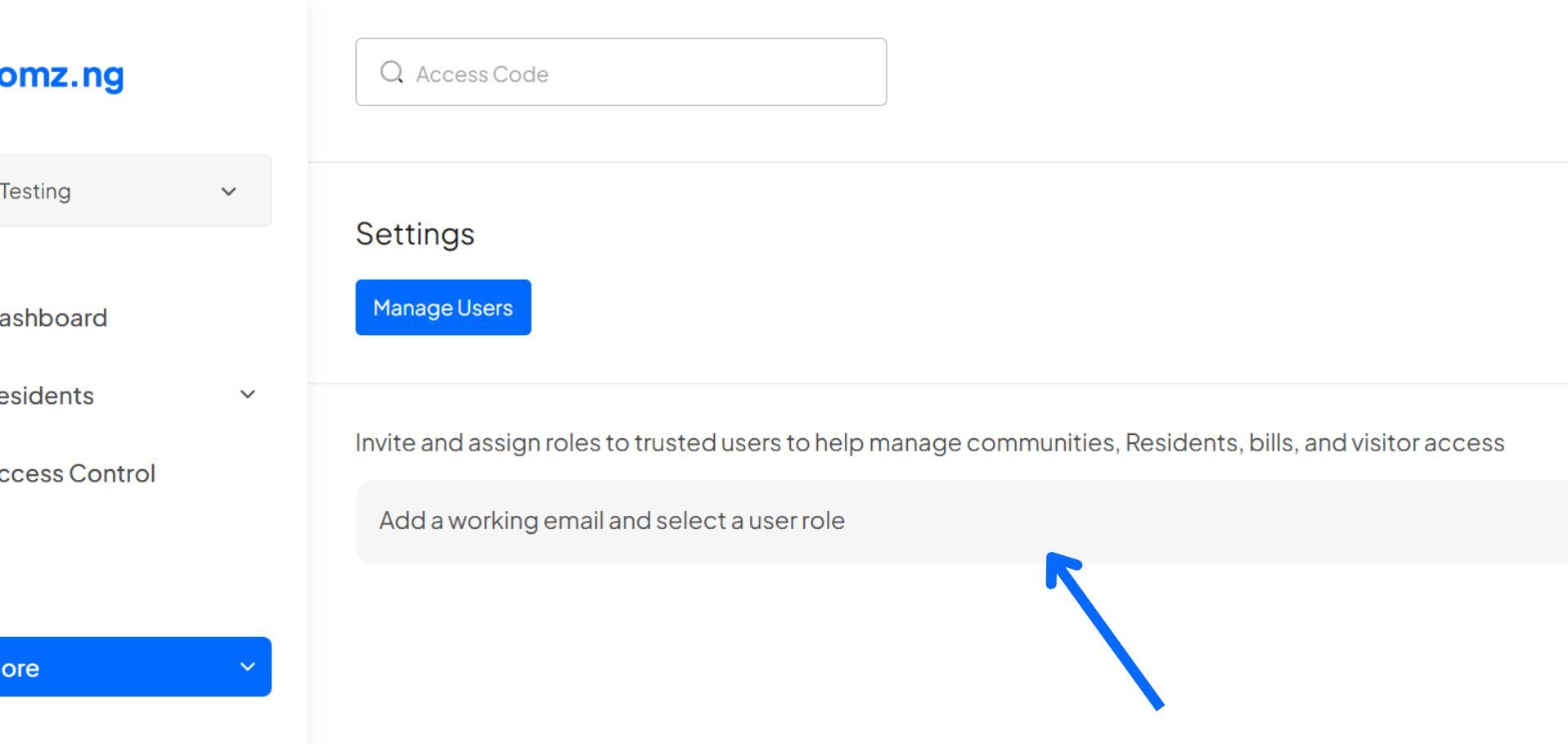
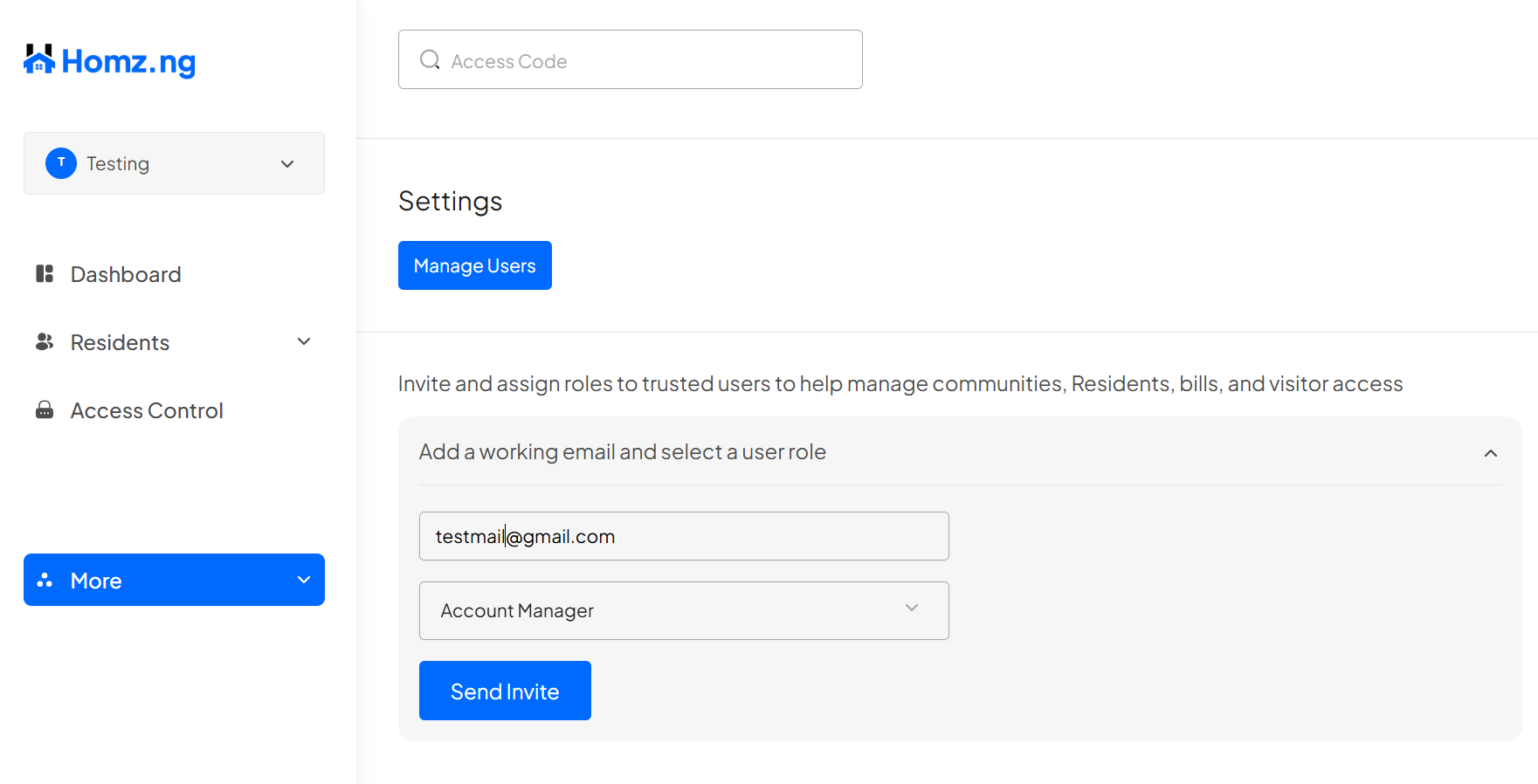
Step 3: Click on the “Add a working email and select a user role” panel
Add email address and select the role
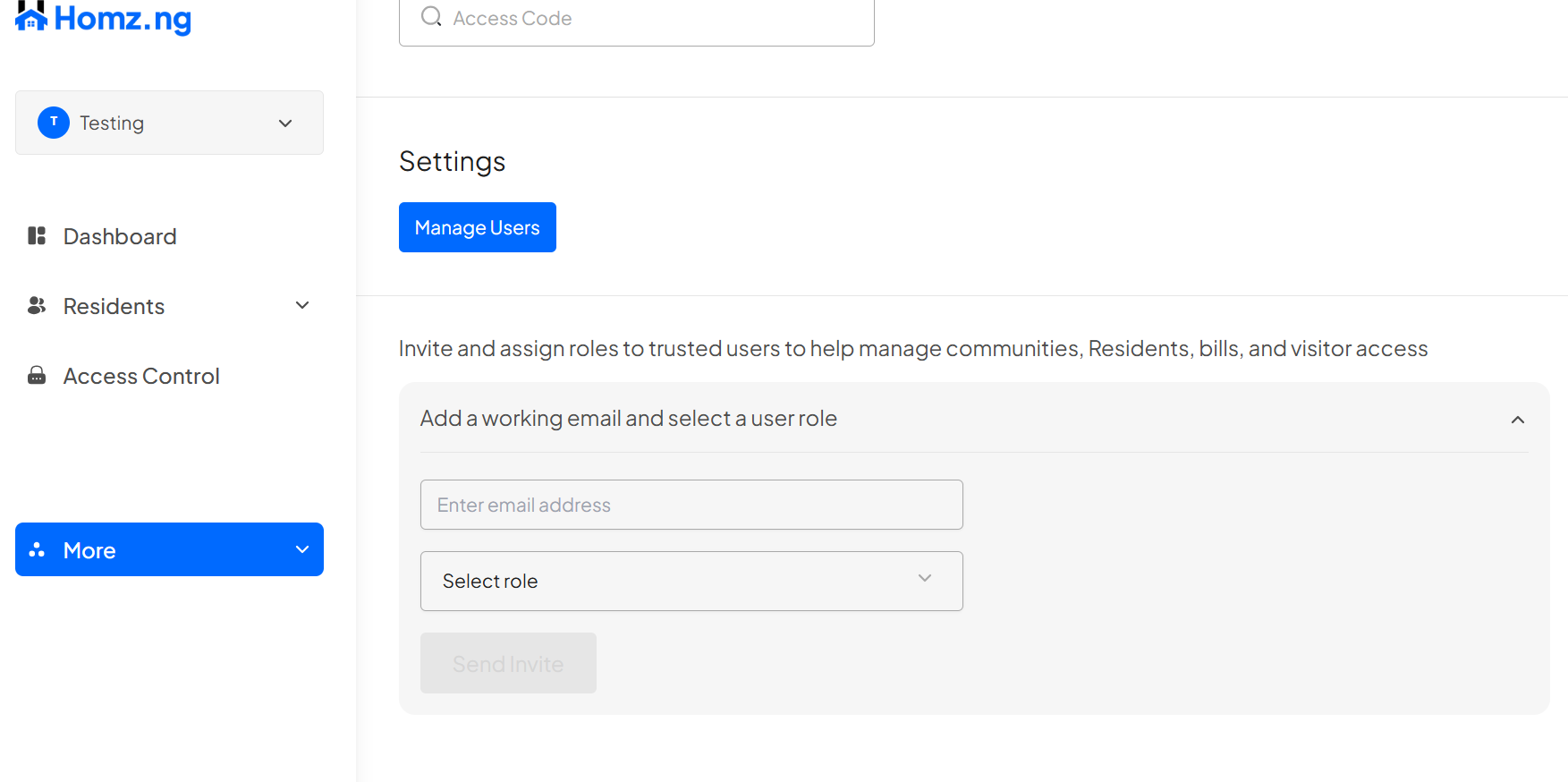
Then click on the “Send Invite” button.

Congratulations, You have successfully added users and assigned role to them. Enjoy!
Learn how to create an account and sign in to your dashboard.
Learn how to switch between your estates.
Learn how to register a visitor and generate an access code.
Learn how to add new residents via link generation.